SAFARI EXTENSION FOR MACOS

Put your tabs away.
Get them back exactly as they were.
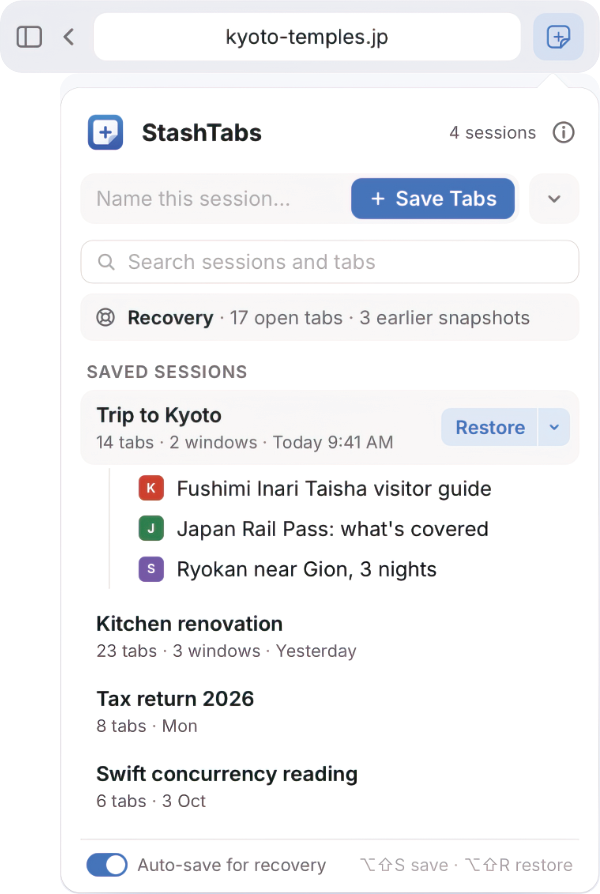
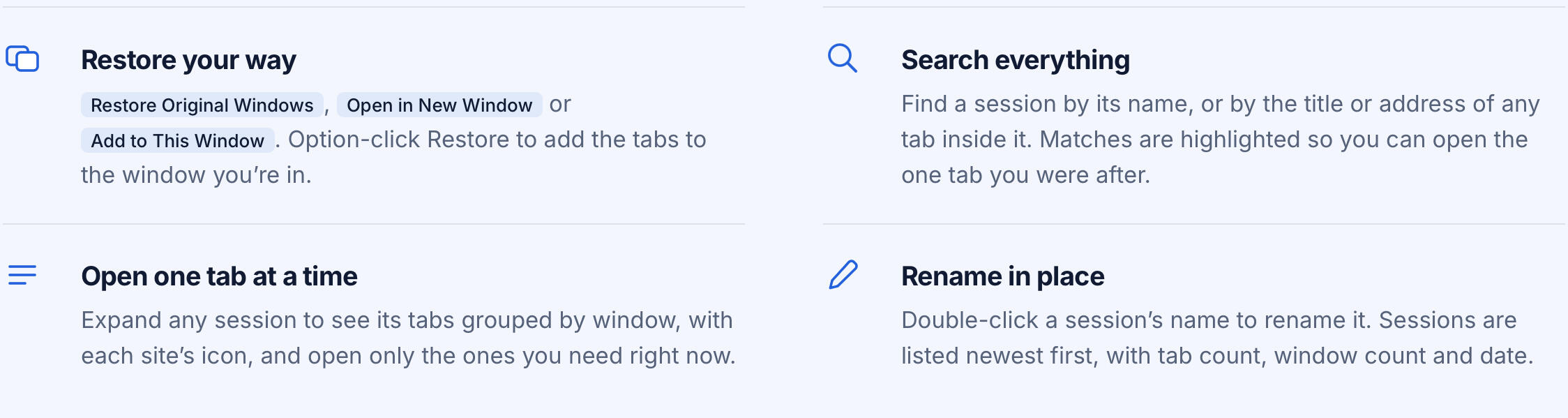
StashTabs saves the tabs you have open as a named session. Close them, clear your head, and restore the whole set later in the same windows they came from.
Version 0.1 · macOS 13 Ventura or later
HOW IT WORKS
Three steps, and your tabs stop piling up.
FEATURES
Small popup, everything you need.
Search, sort and export your application inventory for cleanup, review, audit, handoff or planning.
SHARING
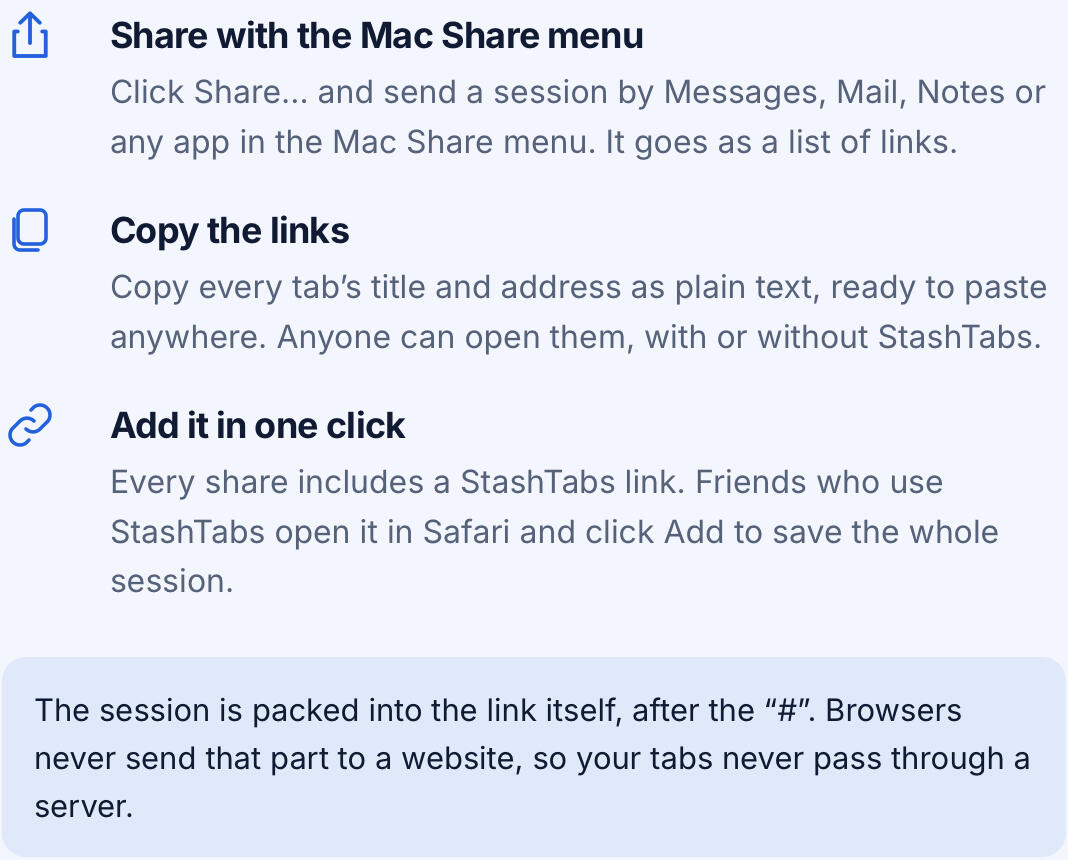
Send a session to anyone.
RECOVERY
Closed the wrong window? It’s still here.
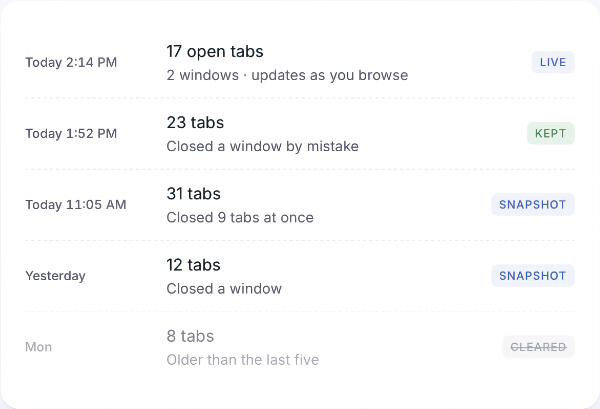
Auto-save takes a snapshot of your open windows a moment after your tabs change.
Closing a window, or five or more tabs at once, sets the previous snapshot aside so you can get it back.
The last five snapshots are kept. Press Keep to move one into your saved sessions for good.
Private windows are never saved.
KEYBOARD SHORTCUTS
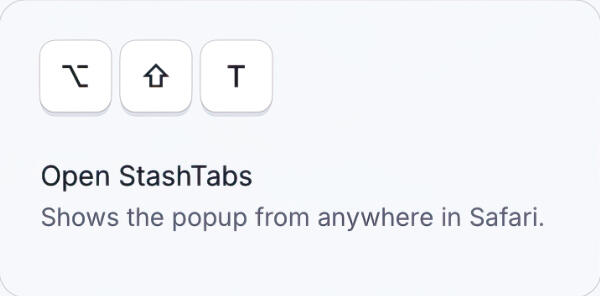
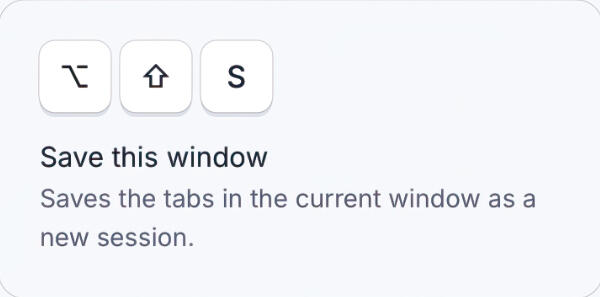
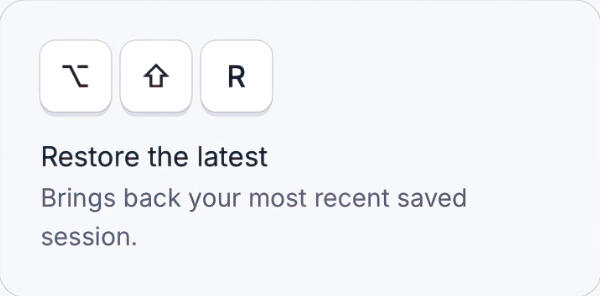
Save and restore without leaving the keyboard.
PRIVACY AND SETUP
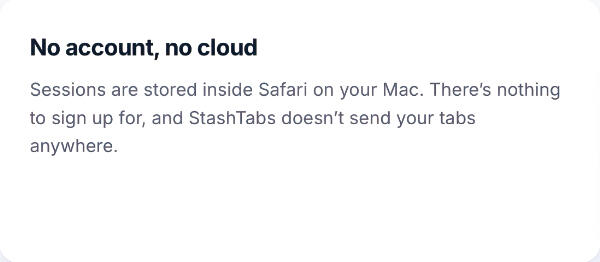
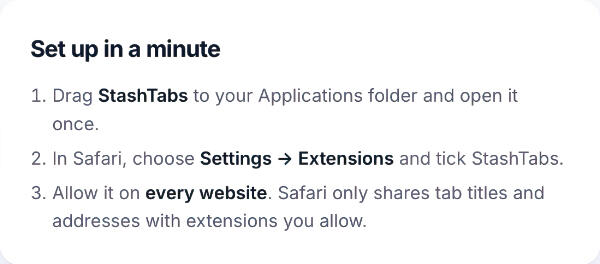
Your tabs stay on your Mac.
SUPPORT
Get in touch.
StashTabs is not yet distributed. Watch this space for updates and please use the contact form for information requests.
Bug reports, feature ideas, or a question before you buy - it all comes straight to us. We aim to respond in 48 hours.
StashTabs is developed by Michael Edwards. All rights reserved © 2026.Check out our other macOS apps:




StashTabs Privacy Policy.
Effective date: 16 October 2026
Summary
StashTabs does not collect, send or share your information. Everything it saves stays on your Mac.
StashTabs is a Safari extension for Mac made by Michael Edwards.
This policy explains what it saves, why it asks for permissions, and how to delete your data.
What StashTabs saves
StashTabs saves only what it needs to bring your tabs back:
Your sessions: the name and date of each session you save, and the title, address and icon address of each tab in it
Recovery snapshots: the same details for your open windows, saved automatically while auto-save is on. It keeps the latest one and up to 5 earlier ones
Your settings: whether auto-save is on, and whether to save one window or all of them
All of this is kept in Safari on your Mac. StashTabs also keeps a backup copy in its own folder on your Mac, so your sessions come back if you reinstall the app. Nothing is synced to iCloud or anywhere else.
What StashTabs doesn't do
No accounts or sign-in
No servers. Your tabs are never uploaded
No analytics, tracking or ads.
It doesn't read or change the pages you visit
It never sells or shares your information
Sharing
StashTabs only shares a session when you choose to:
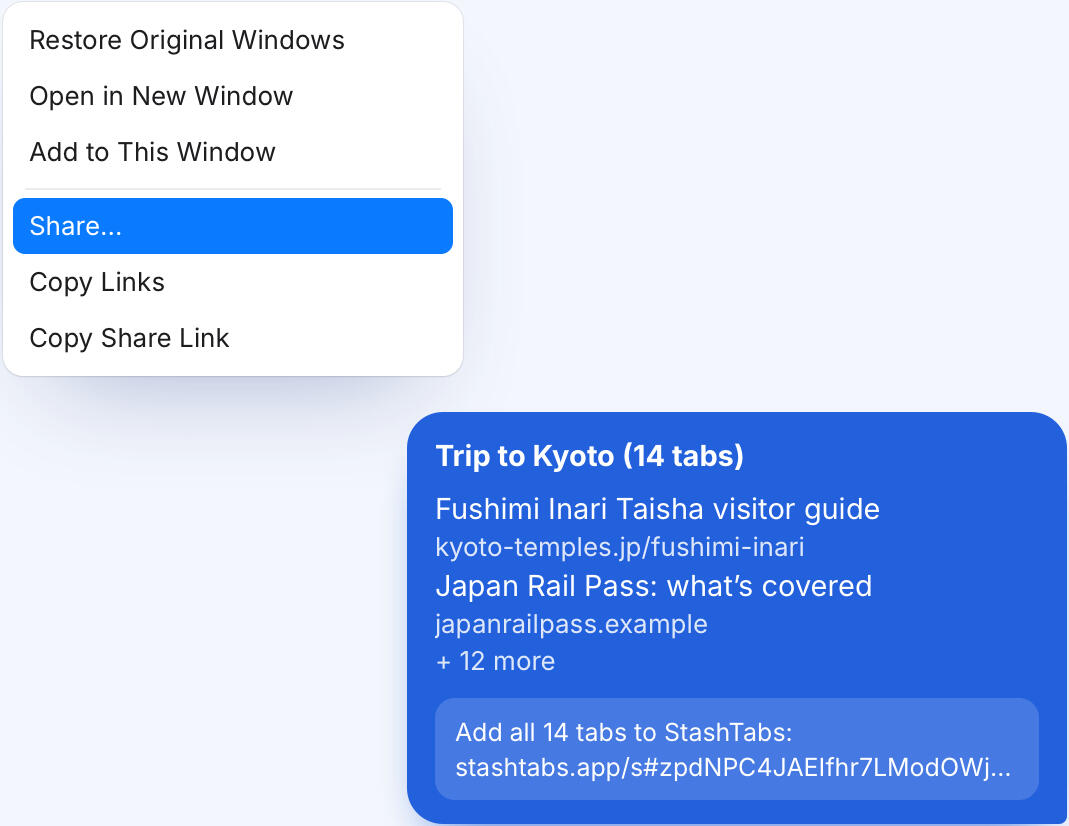
Share… opens Safari's Share menu, which passes the session's tab titles and addresses to the app you pick, such as Messages, Mail or AirDrop. That app sends them, not StashTabs or Safari
Copy Links and Copy Share Link put the same details on your clipboard for you to paste.
Every share includes a StashTabs link. The session is packed into the link after the "#", and browsers never send that part to a website. So your shared tabs never reach the stashtabs.app website or anyone else
When someone opens a share link, the stashtabs.app page reads the tabs from the link inside their browser and doesn't save them anywhere
Once shared, the people you send it to have those links. Check the addresses don't contain anything private before you share
A session someone shares with you is only added to your StashTabs if you click Add
Why Safari asks for permissions
Tabs: to see your open tabs so it can save them, and to reopen them later
All websites: Safari only lets an extension see a tab's address on sites you allow. StashTabs uses this to save the address, not to read the page
Storage: to keep your sessions in Safari
Talking to the StashTabs app: to save and load the backup copy on your Mac
Website icons
When you open a session in the popup, Safari loads each tab's icon from its website, just like your tab bar does. StashTabs sends nothing to those sites.
Private windows
Auto-save never saves private windows. If you save a private window yourself, it's kept like any other session until you delete it.
Deleting your data
To delete a session, click its trash button in the popup
To stop recovery snapshots, turn off auto-save at the bottom of the popup
To delete everything, delete StashTabs from Applications, then delete the folder ~/Library/Containers/com.stashtabs.app.extension
Your data never leaves your Mac, so there's nothing for us to delete.
Children
StashTabs collects no information from anyone, including children.
Changes
If a future version changes how StashTabs handles your data, this policy and its date will be updated first.
Contact or questions
Developer: Michael Edwards
Contact Form: support@stashtabs [We aim to respond within 48 hours]
Website: StashTabs